
File Handling
Now that we have a framework for testing and developing our code, it's time to start looking at some of Python's other built-in modules. In the next few lessons, we'll learn about various Python features, and we'll use TDD to develop small programs with the new features that we learn.
In this lesson, we will explore some of Python's high-level file handling capabilities. Python has lots of built-in functions and modules geared to help streamline the file handling process. It smooths over many differences between operating system platforms, so you'll have a single interface for dealing with files, whether you're on Windows, OS X, or Linux. First we'll review how to read and write files, then, we'll learn how to get information from and navigate in our file system, search for files, and archive and compress our files. We'll be playing with these features:
- the file object and the built-in open() function
- os.path
- glob
Our first example involves the file object. You will create a module that can read in the contents of a file as a list of lines (without using file.readline or file.readlines), and write out a list of lines as a file. When the read() function is applied to the file that write() creates, it produces the same list as that which is passed in to the write() function. Unlike standard file methods, these functions deal with lines that do not contain the terminating newline.
You'll use newline as the delimiter. The file that you get after you write out a list containing the delimiter, does not need to produce the same list when it's read back in, so you don't have to figure out whether the lines contain the delimiter.
The setUp() method establishes a common file name and creates a set of test fixtures (particular lists that we have arbitrarily chosen to test the code). Each of the individual test methods calls a common verify_file() function with one of the test fixtures as its second argument.
Let's start by writing some tests, test_fileops.py, and stubbing out (that is, creating a "stub" program that doesn't do anything, so the other program(s) calling it don't show errors) your module, fileops.py. Don't forget to add a new test case if you add a new fixture!
Create test_fileops.py as shown:
import unittest
import os
import fileops

class TestReadWriteFile(unittest.TestCase):
    """Test case to verify list read/write functionality."""

    def setUp(self):
        """This function is run before each test."""
        self.fixture_file = "test-read-write.txt"
        self.fixture_list = ["my", "written", "text"]
        self.fixture_list_empty_strings = ["my", "", "", "written", "text"]
        self.fixture_list_trailing_empty_strings = ["my", "written", "text", "", ""]

    def verify_file(self, fixture_list):
        """Verifies that a given list, when written to a file,
        is returned by reading the same file."""
        fileops.write_list(self.fixture_file, fixture_list)
        observed = fileops.read_list(self.fixture_file)
        self.assertEqual(observed, fixture_list,
                          "%s does not equal %s" % (observed, fixture_list))

    def test_read_write_list(self):
        self.verify_file(self.fixture_list)

    def test_read_write_list_empty_strings(self):
        self.verify_file(self.fixture_list_empty_strings)

    def test_read_write_list_trailing_empty_strings(self):
        self.verify_file(self.fixture_list_trailing_empty_strings)

    def tearDown(self):
        """This function is run after each test."""
        try:
            os.remove(self.fixture_file)
        except OSError:
            pass

if __name__ == "__main__":
    unittest.main()
Generally, each unit test should test just one function or method at a time. Otherwise our code will produce fragile tests, that may break as code is refactored. Our example is a special case, though. We're trying to match the input of write_list() with the output of read_list(), and rewriting the implementation of one function in our tests just to test the other seems redundant.
You'll see an error marker on the import fileops line because we haven't created fileops.py yet, so we can't run this program.
Now, let's stub the functions in fileops.py. The stubbed module provides functions with the correct interface, but no functionality. We don't expect the tests to succeed when we run them, but if the stubbed module is correctly structured we'll see failures rather than errors.
"""Reads a list from a file and writes a list to a file."""

def write_list(fn, lst):
    """Writes a list to a named file. Each list item will be on
    a separate line. Overwrites the file if it already exists.
    """
    pass

def read_list(fn, lst):
    """Reads a list from a file without using readline.
    Uses standard line endings ("\n") to delimit list items.
    """
    pass
Save fileops.py, then run test_fileops.py. Your output will look like this:
EEE
======================================================================
ERROR: test_read_write_list (__main__.TestReadWriteFile)
----------------------------------------------------------------------
Traceback (most recent call last):
  File "test_fileops.py", line 24, in test_read_write_list
    self.verify_file(self.fixture_list)
  File "test_fileops.py", line 19, in verify_file
    observed = fileops.read_list(self.fixture_file)
TypeError: read_list() takes exactly 2 positional arguments (1 given)

======================================================================
ERROR: test_read_write_list_empty_strings (__main__.TestReadWriteFile)
----------------------------------------------------------------------
Traceback (most recent call last):
  File "test_fileops.py", line 27, in test_read_write_list_empty_strings
    self.verify_file(self.fixture_list_empty_strings)
  File "test_fileops.py", line 19, in verify_file
    observed = fileops.read_list(self.fixture_file)
TypeError: read_list() takes exactly 2 positional arguments (1 given)

======================================================================
ERROR: test_read_write_list_trailing_empty_strings (__main__.TestReadWriteFile)
----------------------------------------------------------------------
Traceback (most recent call last):
  File "test_fileops.py", line 30, in test_read_write_list_trailing_empty_strings
    self.verify_file(self.fixture_list_trailing_empty_strings)
  File "test_fileops.py", line 19, in verify_file
    observed = fileops.read_list(self.fixture_file)
TypeError: read_list() takes exactly 2 positional arguments (1 given)

----------------------------------------------------------------------
Ran 3 tests in 0.016s

FAILED (errors=3)
The "E" reports indicate that there is some mismatch between the tests and the stub. You need to get rid of any such problems before you replace the stubs with real functionality. The error messages let us know that we're expecting too many arguments in our read_list() function. Modify fileops.py as shown:
"""Reads a list from a file and writes a list to a file."""

def write_list(fn, lst):
    """Writes a list to a named file. Each list item will be on
    a separate line. Overwrites the file if it already exists.
    """
    pass

def read_list(fn, lst):
    """Reads a list from a file without using readline.
    Uses standard line endings ("\n") to delimit list items.
    """
    pass
Save it, and then run test_fileops.py. All the tests fail with "F" now, but that's a good thing—it means that the interfaces in the tests match those in the stubbed code. Your output will look something like this:
FFF
======================================================================
FAIL: test_read_write_list (__main__.TestReadWriteFile)
----------------------------------------------------------------------
Traceback (most recent call last):
  File "test_fileops.py", line 24, in test_read_write_list
    self.verify_file(self.fixture_list)
  File "test_fileops.py", line 21, in verify_file
    "%s does not equal %s" % (observed, fixture_list))
AssertionError: None does not equal ['my', 'written', 'text']

======================================================================
FAIL: test_read_write_list_empty_strings (__main__.TestReadWriteFile)
----------------------------------------------------------------------
Traceback (most recent call last):
  File "test_fileops.py", line 27, in test_read_write_list_empty_strings
    self.verify_file(self.fixture_list_empty_strings)
  File "test_fileops.py", line 21, in verify_file
    "%s does not equal %s" % (observed, fixture_list))
AssertionError: None does not equal ['my', '', '', 'written', 'text']

======================================================================
FAIL: test_read_write_list_trailing_empty_strings (__main__.TestReadWriteFile)
----------------------------------------------------------------------
Traceback (most recent call last):
  File "test_fileops.py", line 30, in test_read_write_list_trailing_empty_strings
    self.verify_file(self.fixture_list_trailing_empty_strings)
  File "test_fileops.py", line 21, in verify_file
    "%s does not equal %s" % (observed, fixture_list))
AssertionError: None does not equal ['my', 'written', 'text', '', '']

----------------------------------------------------------------------
Ran 3 tests in 0.016s

FAILED (failures=3)
The FAIL messages include enough traceback to identify the specific lines that are causing problems in the tests, and the error messages give you a pretty clear idea of what needs to be fixed (hint: don't return "None"!)
So now, let's fill out the stubs with real code. Modify fileops.py as shown:
"""Reads a list from a file and writes a list to a file."""

def write_list(fn, lst):
    """Writes a list to a file. Each list item will be on a separate line.
    Overwrites the file if it already exists."""
    f = open(fn, "w")
    for item in lst:
        f.write("%s\n" % item)
    f.close()


def read_list(fn):
    """Reads a list from a file without using readline. Uses unix style line
    endings ("\n") to delimit list items."""
    f = open(fn, "r")
    s = f.read()
    l = s.split("\n")
    return l
This looks like it might work, so let's run our tests again. Bummer—more failures. Can you work out what the problem is, using the information in the messages?
FFF
======================================================================
FAIL: test_read_write_list (__main__.TestReadWriteFile)
----------------------------------------------------------------------
Traceback (most recent call last):
  File "test_fileops.py", line 24, in test_read_write_list
    self.verify_file(self.fixture_list)
  File "test_fileops.py", line 21, in verify_file
    "%s does not equal %s" % (observed, fixture_list))
AssertionError: ['my', 'written', 'text', ''] does not equal ['my', 'written', 'text']

======================================================================
FAIL: test_read_write_list_empty_strings (__main__.TestReadWriteFile)
----------------------------------------------------------------------
Traceback (most recent call last):
  File "test_fileops.py", line 27, in test_read_write_list_empty_strings
    self.verify_file(self.fixture_list_empty_strings)
  File "test_fileops.py", line 21, in verify_file
    "%s does not equal %s" % (observed, fixture_list))
AssertionError: ['my', '', '', 'written', 'text', ''] does not equal ['my', '', '', 'written', 'text']

======================================================================
FAIL: test_read_write_list_trailing_empty_strings (__main__.TestReadWriteFile)
----------------------------------------------------------------------
Traceback (most recent call last):
  File "test_fileops.py", line 30, in test_read_write_list_trailing_empty_strings
    self.verify_file(self.fixture_list_trailing_empty_strings)
  File "test_fileops.py", line 21, in verify_file
    "%s does not equal %s" % (observed, fixture_list))
AssertionError: ['my', 'written', 'text', '', '', ''] does not equal ['my', 'written', 'text', '', '']

----------------------------------------------------------------------
Ran 3 tests in 0.047s

FAILED (failures=3)
If you examine the results carefully, you'll see that each observed result from the read_line() function contains an extra empty string. The problem is that your write_list() function is inserting a newline after each line it writes. When you read the file back in with the read_list() function, the split("\n") method expects strings on either side of each delimiter, so an extra blank line appears.
We can write our code to anticipate those newlines, but we have to make sure that we our files are still handled correctly in other ways. It's possible for a file, under certain circumstances, to be written without a final newline. The fix should take that possibility into account and take action only when the final character in the file is a newline terminator. Apply the fix as shown:
"""Reads a list from a file and writes a list to a file."""

def write_list(fn, lst):
    """Writes a list to a file. Each list item will be on a separate line.
    Overwrites the file if it already exists."""
    f = open(fn, "w")
    for item in lst:
        f.write("%s\n" % item)
    f.close()


def read_list(fn):
    """Reads a list from a file without using readline. Uses unix style line
    endings ("\n") to delimit list items."""
    f = open(fn, "r")
    s = f.read()
    # If the last character in the file is a newline, delete it
    if s[-1] == "\n":
        s = s[:-1]
    l = s.split("\n")
    return l
Run it again. Ah. Success! We finally see the correct result:
...
----------------------------------------------------------------------
Ran 3 tests in 0.001s

OK
Good job.
| Modern Python | Both write_list() and read_list() open a file and call
close() manually. The modern idiom uses a with statement, which
closes the file automatically even if an exception is raised:
def write_list(fn, lst):
    with open(fn, "w") as f:
        for item in lst:
            f.write("%s\n" % item)

def read_list(fn):
    with open(fn, "r") as f:
        s = f.read()
    if s[-1] == "\n":
        s = s[:-1]
    return s.split("\n")
The logic is otherwise identical; the with block simply guarantees clean-up. |
The file system identifies files by name and location. The technical term for the name-and-location data is a path or path name. It details how to navigate through a sequence of folders to the required file. You can extract information from these path names by using the os.path module. Different platforms have different path name conventions (for example, Windows uses "\" as its path name separator while Unix-like operating systems use "/").
os.path is actually just a reference to another module that is platform specific. When your system loads the os module, code in that module selects and loads the appropriate submodule as os.path. On Windows, the submodule being used behind the scenes is os.ntpath. It has the same interface as os.path, so you can use most functions interchangeably. But using os.ntpath on its own means that you can only use Windows-style path names. os.posixpath is the path module for all operating systems that use Unix-style path names, such as Linux and OS X.
os.path contains utility functions for retrieving path name and file attribute information. Open an interactive session to see what os.path can do. We'll start out by creating a temp directory using its mkdir() function, and then go ahead and use other features. In an interactive shell, type the code as shown:
>>> import os
>>> os.mkdir("/tmp/ostmp")
>>> f1 = open("/tmp/ostmp/file1.txt", "w")
>>> f2 = open("/tmp/ostmp/file2.txt", "w")
>>> f1.close()
>>> f2.close()
>>> f1.name
'/tmp/ostmp/file1.txt'
>>> f2.name
'/tmp/ostmp/file2.txt'
>>> os.path.exists(f1.name)
True
>>> os.path.exists(f2.name)
True
>>> os.path.exists("/tmp/ostmp/file3.txt")
False
>>> os.path.getmtime(f1.name)
1781248854.3211517
>>> os.path.getmtime(f2.name)
1781248854.321247
>>> os.path.basename(f1.name)
'file1.txt'
>>> os.path.basename("/tmp/ostmp/")
''
>>> name, extension = os.path.splitext(f1.name)
>>> name
'/tmp/ostmp/file1'
>>> extension
'.txt'
>>> os.path.dirname(f1.name)
'/tmp/ostmp'
>>> os.path.split(f1.name)
('/tmp/ostmp', 'file1.txt')
>>> joined = os.path.join("/tmp/ostmp", "file1.txt")
>>> joined
'/tmp/ostmp/file1.txt'
>>> os.path.exists(joined)
True
>>> joined = os.path.join(os.path.dirname(f1.name), os.path.basename(f1.name))
>>> joined
'/tmp/ostmp/file1.txt'
>>> os.path.abspath("/tmp/ostmp/../ostmp/file1.txt")
'/tmp/ostmp/file1.txt'
os.path.exists() returns True if the path passed as an argument actually exists. On some platforms, the return value may differ based on file permissions and symbolic links.
os.path.getmtime() returns the amount of time (in seconds) between your platform's epoch date (the origin of time for your particular platform—for example, for Windows, getmtime would return the number of seconds since January 1st, 1601) and the last time that a file was modified. getmtime() is part of a group of functions that retrieves time information from a file. getatime() returns the last time the file was accessed and getctime() returns the time the file was created (on Unix-like systems, this is actually the last time a file was changed). You can convert these times to human-readable strings using functions from the time module, which we will look at later in this course.
As the module's name implies, os.path contains functions for manipulating path names. os.path.basename() returns the last path name component without any slashes. You can consider the basename as you would an actual filename component of a full path. If the path supplied to basename() ends in a slash, an empty string will be returned (because there is no filename component). To retrieve the path to the file, but not the file name itself, you can use os.path.dirname().
| Note | In the os.path.basename example, we can't create a raw string literal ending with a single backslash (r"v:\tmp\"), so we instead used the non-raw string with double backslashes ("v:\\tmp\\"). Although backslashes are mostly treated as normal characters in raw string literals rather than altering the significance of the following character, any following quote character is always treated as part of the string literal. This is so that quote characters can still appear in string literals. For more information, see this stackoverflow article. |
The os.path.split() function returns a tuple. The tuple's first element is what dirname() would return; its second element is what basename() would return.
os.path.join() does the opposite of split(); it joins path components together into full path names. It will add a slash between components where necessary, and you can give it as many arguments as you like. Joining the dirname() and basename() of a path gives back the original path.
| Modern Python | pathlib.Path (introduced in Python 3.4) offers an object-oriented
alternative to the os.path functions used here. For example:
from pathlib import Path
p = Path("/tmp/ostmp/file1.txt")
p.exists()        # True
p.name            # 'file1.txt'
p.stem            # 'file1'
p.suffix          # '.txt'
p.parent          # Path('/tmp/ostmp')
p.parent / p.name # Path('/tmp/ostmp/file1.txt')
pathlib handles cross-platform path separators automatically and composes paths
with / rather than string concatenation. The os.path functions
remain fully supported and are not going away. |
So now you know how to read and write files, but what if you want to find a file? For that, you'll need the glob() function, which lives in the module of the same name. glob() finds paths that match a particular pattern. The symbols and patterns in the table below are the same wildcards you might use in your command shell and many other places:
| Symbol | Description | Example |
|---|---|---|
| ? | Match any single character exactly once. | ?ar matches bar or tar, but not star. |
| * | Match any number of characters. | *ar matches bar, tar, star and exemplar. |
| [characters or character range] | Match exactly one character in a range or set. | [a-z]ar matches tar, but not star or 4ar |
Now, using the interactive shell, we're going to create a directory containing the following files: test1.txt, test2.txt, test3.txt, and another.one. Let's see what glob() can do with these files. Type this code into an interactive Python console:
>>> for i in range(1,4):
...     f = open("/tmp/ostmp/test"+str(i)+".txt", "w")
...     f.close()
...
>>> f = open("/tmp/ostmp/another.one", "w")
>>> f.close()
>>> import glob
>>> os.chdir("/tmp/ostmp")
>>> glob.glob("*.*")
['another.one', 'test1.txt', 'test2.txt', 'test3.txt']
>>> glob.glob("*.txt")
['test1.txt', 'test2.txt', 'test3.txt']
>>> glob.glob("*.one")
['another.one']
>>> glob.glob("test?.txt")
['test1.txt', 'test2.txt', 'test3.txt']
>>> glob.glob("test[1-2].txt")
['test1.txt', 'test2.txt']
As long as their names share a common pattern, you can access your chosen files. There are also ways to read all of the entries within a directory, or even to walk through an entire directory tree, but we'll address that in a later course.
Let's try using the glob and os.path modules to create a function that returns a list of the most recently modified files from a particular path. It will take as arguments, the number of files that we want returned, and the path where we'll look for the files. You'll reuse and modify the module from our last example, so don't worry about error handling just yet. To develop the good programming habits you're going to have, start out with some tests!
In the directory listing below, file.old is the oldest of the three listed files, and file.new the newest:

Create a new file named test_latest.py as shown:
import unittest
import latest
import time
import os

PATHSTEM = "/tmp/latesttest/"

class TestLatest(unittest.TestCase):

    def setUp(self):
        os.makedirs(PATHSTEM, exist_ok=True)
        self.path = PATHSTEM
        self.file_names = ["file.old", "file.bak", "file.new"]
        for fn in self.file_names:
            f = open(self.path+fn, "w")
            f.close()
            time.sleep(1)

    def test_latest_no_number(self):
        """
        Ensure that calling the function with no arguments returns
        the single most recently-created file.
        """
        expected = [self.path + "file.new"]
        latest_file = latest.latest(path=self.path)
        self.assertEqual(latest_file, expected,)

    def test_latest_with_args(self):
        """
        Ensure that calling the function with arguments of 2 and some
        directory returns the two most recently-created files in the directory.
        """
        expected = set([self.path + "file.new",
            self.path + "file.bak"])
        latest_files = set(latest.latest(2, self.path))
        self.assertEqual(latest_files, expected)

    def tearDown(self):
        for fn in self.file_names:
            os.remove(self.path + fn)

if __name__ == "__main__":
    unittest.main()
Save it. You can't run the tests just yet—you need to have something to test first. The TestLatest class, above, defines two tests with common setUp and tearDown. The setUp will take a little longer than our previous tests, because it needs to create three files with different creation times, and it sleeps for a second after setting up each file.
| Note | If you want to use these tests in a different location, change the code to suit the local environment by modifying the PATHSTEM assignment. |
Your unit tests show that your function should be able to take in arguments for the number of recent files that you want returned, and the path where it will look for your files. It should also work if you let your function use its default arguments.
Now, let's create the latest.py module for the test module to import:
import glob
import os

def latest(num=1, path="."):
    pass
Save it, and then run test_latest.py:
FE
======================================================================
ERROR: test_latest_with_args (__main__.TestLatest)
----------------------------------------------------------------------
Traceback (most recent call last):
  File "test_latest.py", line 34, in test_latest_with_args
    latest_files = set(latest.latest(2, self.path))
TypeError: 'NoneType' object is not iterable

======================================================================
FAIL: test_latest_no_number (__main__.TestLatest)
----------------------------------------------------------------------
Traceback (most recent call last):
  File "test_latest.py", line 25, in test_latest_no_number
    self.assertEqual(latest_file, expected,)
AssertionError: None != ['/tmp/latesttest/file.new']

----------------------------------------------------------------------
Ran 2 tests in 6.031s

FAILED (failures=1, errors=1)
What's wrong here? In this case, the issue is with the behavior of the stub function. The stub function is returning None, but the test_latest_with_args() test expects a list back from latest.latest(). We can fix that, but how? Pause, ponder, and reflect on that for a minute before going on to the next part...
Okay, now let's see if you can get your tests to pass! Modify latest.py as shown:
import glob import os def latest(num=1, path="."):passreturn []
Save it and run test_latest.py.
FF
======================================================================
FAIL: test_latest_no_number (__main__.TestLatest)
----------------------------------------------------------------------
Traceback (most recent call last):
  File "test_latest.py", line 25, in test_latest_no_number
    self.assertEqual(latest_file, expected,)
AssertionError: Lists differ: [] != ['/tmp/latesttest/file.new']

Second list contains 1 additional elements.
First extra element 0:
/tmp/latesttest/file.new

- []
+ ['/tmp/latesttest/file.new']

======================================================================
FAIL: test_latest_with_args (__main__.TestLatest)
----------------------------------------------------------------------
Traceback (most recent call last):
  File "test_latest.py", line 35, in test_latest_with_args
    self.assertEqual(latest_files, expected)
AssertionError: Items in the second set but not the first:
'/tmp/latesttest/file.new'
'/tmp/latesttest/file.bak'

----------------------------------------------------------------------
Ran 2 tests in 6.047s

FAILED (failures=2)
Excellent! A little modification to the stub makes sure that your tests fail properly—without errors! The default messages from the failed assertions contain lots of detail to help you figure out why your tests are failing.
Now we need to make our tests pass. Edit latest.py as shown:
import glob
import os

def latest(num=1, path="."):
    files_with_dates = []
    files = glob.glob(os.path.join(path, "*"))
    latest_files = []
    for fn in files:
        files_with_dates.append((os.path.getmtime(fn), os.path.abspath(fn)))
    files_with_dates.sort()
    for file_info in files_with_dates[-num:]:
        latest_files.append(file_info[1])
    latest_files.reverse()
    return latest_files
The setUp() method (which is run before each test) needs to create three files with the right sequence of creation times. The test's setUp() method contains a sleep to make sure that the files' creation times differ by at least one second.
Save it and run the test. Both tests should pass:
..
----------------------------------------------------------------------
Ran 2 tests in 6.033s

OK
Nice.
Another technique used to produce the most recent files is list comprehension. List comprehensions reduce the amount of code in your program.
| Note | Shorter code is not always better. Less code could lead to decreased readability. Readability is one of the most important attributes of your code, and should only be sacrificed when performance demands it. It's up to you to decide which way to go. |
Let's try using list comprehensions. Modify latest.py as shown:
import glob
import os

def latest(num=1, path="."):
    files_with_dates = []
    files = glob.glob(os.path.join(path, "*"))
    latest_files = []
    for fn in files:
        files_with_dates.append((os.path.getmtime(fn), os.path.abspath(fn)))
    files_with_dates.sort()
    for file_info in files_with_dates[-num:]:
        latest_files.append(file_info[1])
    dated_files = [(os.path.getmtime(fn), os.path.abspath(fn)) for fn in files]
    dated_files.sort()
    latest_files = [f for (d, f) in dated_files[-num:]]
    latest_files.reverse()
    return latest_files
The latest() function uses a technique called "decorate-sort-undecorate" to achieve its goal. The file paths need to be sorted by date, so it builds a list of (date, filename) tuples, which Python can sort more easily (the date is the "decoration" here, because it isn't required in the result, even though it's necessary for sorting.) By default, the tuples are sorted into ascending order, so the paths of the most recent files will be located at the end.
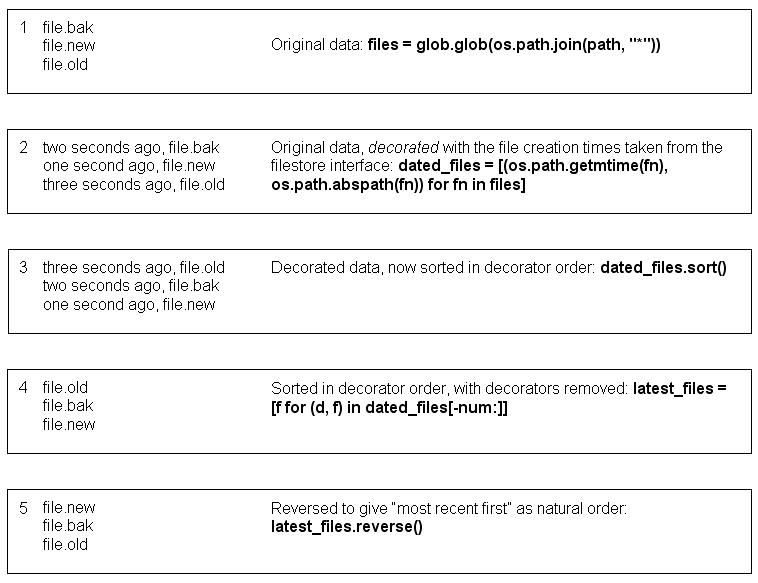
So, the algorithm (the set of instructions for completing the task) extracts just the filenames of the most recent files, by using the negative index located in this chunk of code:
-num makes it go backwards through values of num, then reverses the result, placing the most recent files at the beginning. In other words, -num takes us backwards from end of the list, by num elements (for example, zoo[-5:] would start at the end of zoo and move back five elements, then chop from there to the end of the list). So since the list of files was sorted to get the most recently modified ones last, this clips off the num most recent files and then shares them in oldest-to-newest order.
When you run your tests, the one-second delay between file creations causes the run to take over six seconds, but the output should be two successful tests.
Save and run it. With the new latest module, your tests still pass. All is well, and you can move ahead feeling confident that nothing is broken (or at least nothing that you're testing for is broken).
I'm glad to see you're becoming familiar with some of Python's high-level file handling features: the glob module and os.path. To reiterate, the glob module helps you to search for files using patterns, while os.path helps to retrieve file information, used to do various path name acrobatics—like getting the file name out of a full path or splitting and joining path names.
Now, what do pickles and shelves have in common? We'll find out in the next lesson—see you there!